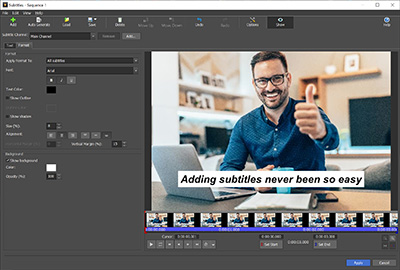
Easily add subtitles to your movie with easy and professional subtitling tool.
Automatically add subtitles with AI
Create videos and subtitles for DVD, HD, 360, YouTube and more
Supports all popular video formats seamlessly
Get it Free. A free video editing and subtitling software version is available for non-commercial use only. If you will be using it at home you can download the free version here.
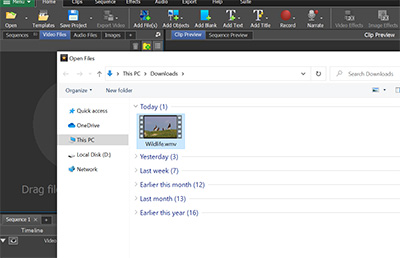
Click the Open button in the Home tab toolbar to select and load your video file.
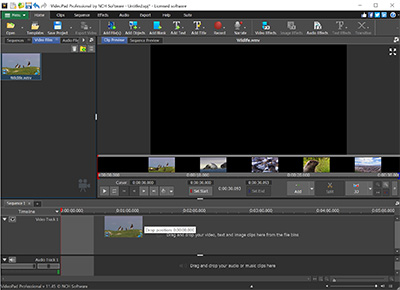
2 Add Clip to Sequence
When your video file is loaded to the project, it will appear in the Video Files bin to the left of the preview panes. Right-click on your file and select "Place on Sequence". You can also press Ctrl+E on your keyboard.
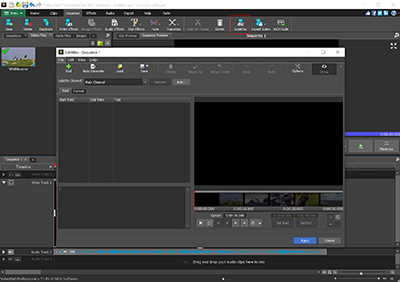
3 Open the Subtitles Window
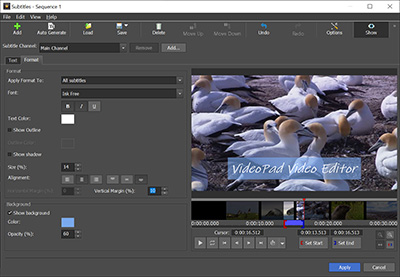
To open the Subtitles window, select the Sequence on the menu tab and click the Subtitles button on the Home tab toolbar.
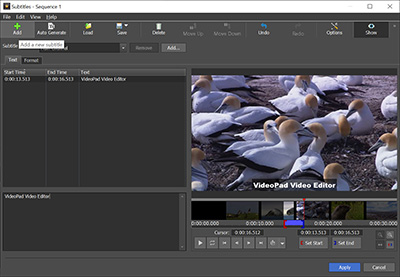
4 Import or Create Subtitles
You can either load an existing subtitles file to VideoPad or create your own subtitles from scratch. Click the Load button in the toolbar of the Subtitles dialog to import an existing file. To start creating your own subtitles, place the cursor on the timeline at the right moment where you want to start displaying subtitles then click the Add button in the toolbar to create your first subtitles entry.
5 Customize your Subtitles
VideoPad offers excellent tools for customization and control over your subtitles. You can change the font, color, size and style of text. You can preview the changes you make in real time, start and pause playback, and jump to certain moments of your video.
6 Save and Export
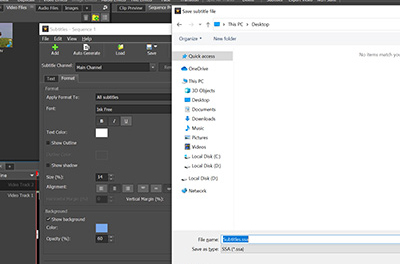
If you wish to save your subtitles as a separate file instead of permanently merging them with your video, click the Save button in the toolbar of the Subtitles dialog. VideoPad will save them as your preferred subtitle file format on your hard drive.
Add subtitles to your videos
Add, auto-generate or load subtitles on selected sequences with easy-to-use subtitling tool.Download Now
Like what you see?
Creating subtitles is one of many brilliant features of VideoPad Video Editing Software. VideoPad is perfect for remastering all the video clips you've been recording on your camcorder. Whether you want to make a video montage of your family's summer road trip, compile a video resume, or assemble the production of your dramatic masterpiece, creating movies has never been easier. You can also add animated text overlays to enhance your movies.




 Start Subtitling Your Videos Today